
How to Play What Do You Meme? Video Game, Start to Finish
Set up the screen, join with a phone, run the first round and pick the right mode for your group size. A complete first-session walkthrough.
The first night with a party game is always the same: someone opens the box, someone else asks where the controllers are, and the group spends ten minutes working out who is supposed to be doing what. This walkthrough removes that ten minutes. It covers the screen, the phones, the first round and the settings you should leave alone until round three.
The short version: start the game on the TV or monitor, pick Classic, read the room code out loud, have everyone join at wdym.gg on their phone, and play one round with the defaults. Everything below is detail on those five steps. If you want the wider context first, the video game guide→ explains how the pieces fit together.
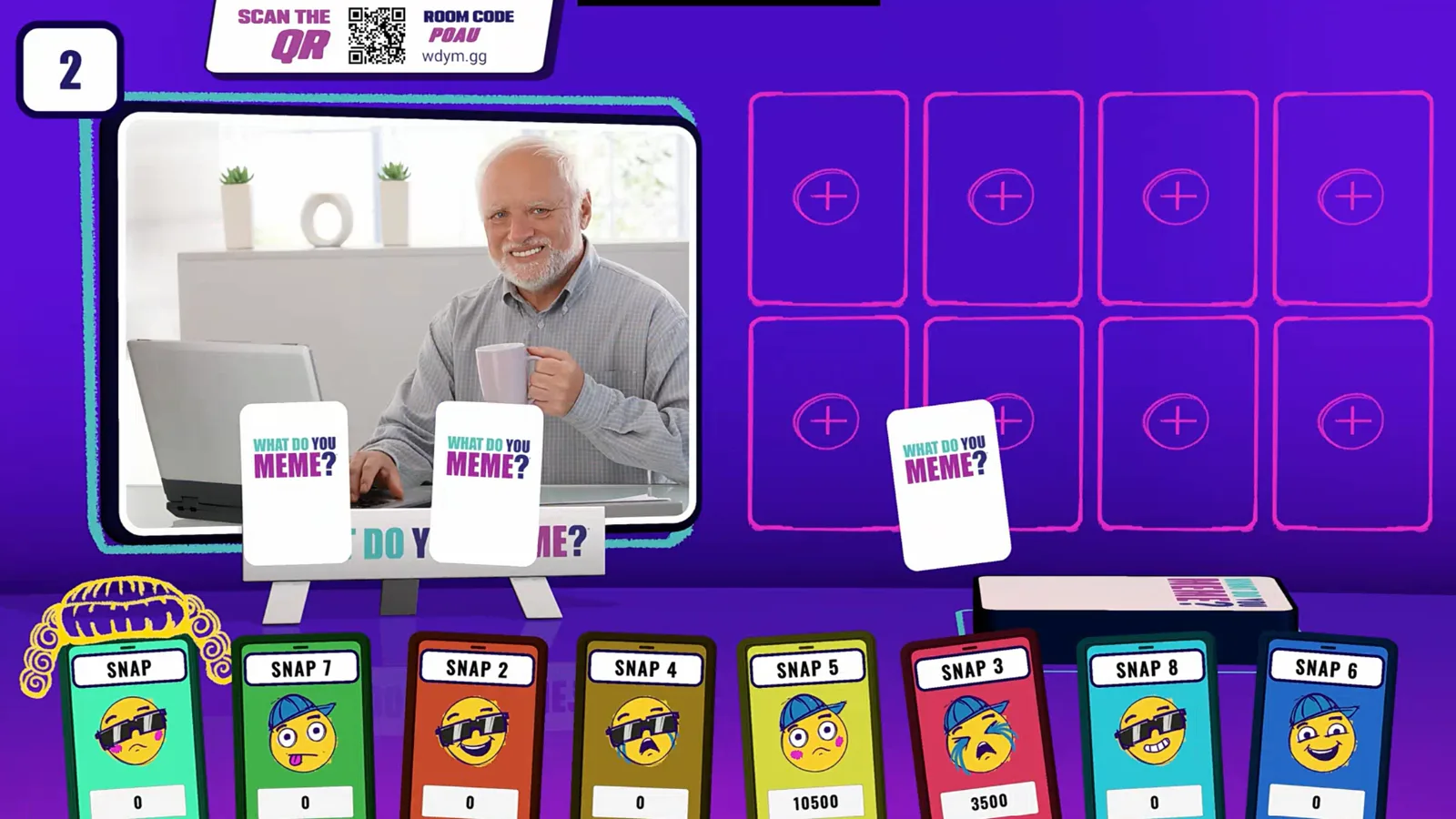
Step 1: Set up the screen like a party, not like a desk
The game is designed around one shared display. A TV in the living room is ideal; a laptop propped on a kitchen table works for three people but gets crowded at six, because the photo card has to be readable from every seat.
Put the display where nobody has to lean in. Sound matters more than you think — the timer and the reveal are audio cues as much as visual ones, and a muted TV makes the countdown feel arbitrary. If you are playing on a monitor with headphones, switch to speakers for the night.
You do not need consoles for every player, extra controllers, or a second screen. One machine runs the game; the phones are the input devices.
Step 2: Pick a mode before anyone joins
The mode menu lists five options, and the first decision is simply how many people are in the room.
- Two or three players: choose Line-Up, the only mode listed for 2–4 players.
- Four or more: Classic is the default and the easiest to teach.
- A group that argues about everything: Majority Rules removes the single judge and lets the table vote.
- A group that has played Classic to death: Flipped or Wavelength.
You can change modes between matches without rebuilding the room, so there is no penalty for starting with Classic and switching after two rounds. The modes page→ has the player counts and pacing for each; if you are specifically setting up a duo, the two-player page→ covers the limitations honestly.
Step 3: Join with a phone at wdym.gg
The TV shows a room code — four characters in the builds we tested — and a web address. Nobody installs anything.
- Unlock the phone and open any browser.
- Go to wdym.gg.
- Type the room code exactly as shown, including capital letters if the field is case-sensitive.
- Enter a display name the table will recognise. This is what appears next to your caption and on the scoreboard.
- Wait for the lobby to show your name on the TV.
Repeat for every player. The screen should show one tile per joined phone; if a name is missing, that phone is not in the room yet, no matter what its browser says. The phone controller page→ has the full join sequence with the common failure points, and the room code troubleshooting page→ is the place to go when the code is rejected.
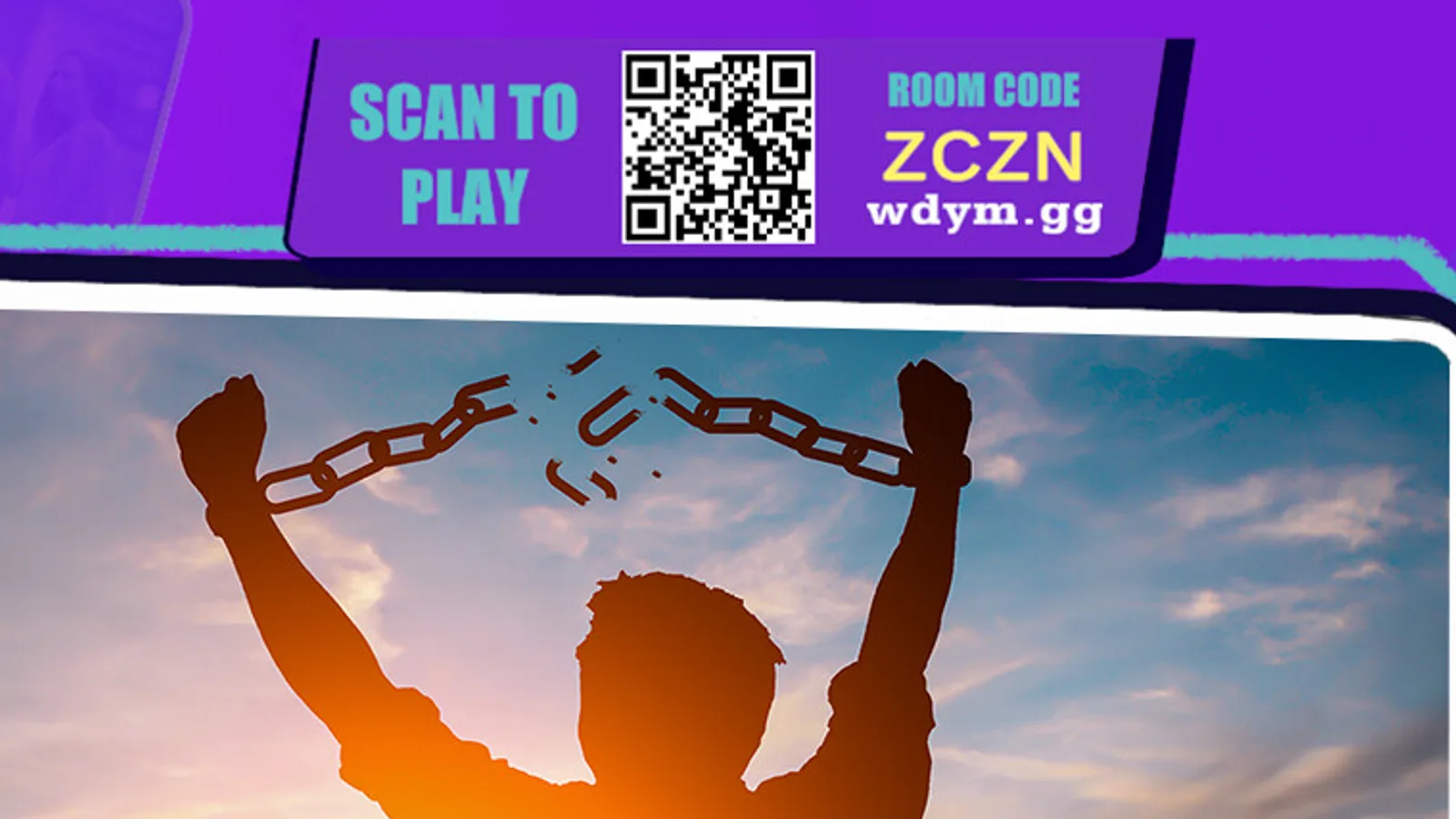
Passing a phone around with the code on screen is slower than reading four characters out loud. It also means everyone joins the same room instead of one person joining twice with two names.
Step 4: Play the first round with the defaults
A round has four beats.
The photo appears. Everyone except the judge looks at the same image on the TV. The judge looks at it too — they just are not submitting anything.
Everyone picks a caption. Your phone shows a hand of caption cards. Choose the one that fits the photo, then lock it in. You cannot change it after locking, so read the room before you tap. The default timer is 35 seconds; if the room is new, that feels fast for the first round and normal by the third.
The judge decides. The TV shows the photo with each submitted caption underneath, without names attached. The judge picks the funniest combination. There is no scoring rubric beyond that pick — the judge is the rubric.
The result lands. The winning player gets 1,500 points, the pairings are revealed with names, and the next photo comes out. The judge role moves on.
Do not explain any of this in advance beyond "pick the funniest caption for the judge". The interface teaches the loop faster than a speech does.
Step 5: Adjust the room, not the rules
After two or three rounds, change one setting at a time.
- Hand size up if people are submitting the same safe joke every round; down if turns drag.
- Timer on if the room is chatty and off if it is small and thoughtful.
- Hall of Shame on if the group enjoys the bad submissions as much as the winners. It keeps the worst pairings visible at the end, which is where most of the laughing happens.
The settings page→ explains what each option changes and which combinations work for a family table versus an adult one.
What usually goes wrong on night one
The three failures are predictable.
A phone will not join. Nine times out of ten the code was typed wrong, the phone is on a locked-down network, or the browser is an in-app browser opened from a chat app. The controller troubleshooting page→ runs through the fixes in order.
The judge does not realise they are sitting out. They wait for a hand that never appears. Tell them explicitly: you are choosing this round, not playing.
Someone expects online play. The launch build is same-room only. There is no matchmaking lobby and no crossplay, so a friend in another city cannot join by code. The online multiplayer status page→ explains what is available now and what Snap Finger Click has promised.
Where to check the details
FAQ
Do players need to download an app? No. The phone controller is a web page at wdym.gg. Any modern mobile browser works, and there is nothing to install or update.
How many phones can join one game? Up to eight players in a room, which matches the Steam and PlayStation listings. The Xbox store page describes 3–8 local players.
Can one person play with two phones? You can join twice with two names, but you are then playing two hands and the scoreboard shows both. It is a way to fill a seat, not a way to play solo.
Does the game work offline? The host machine runs the match, but phones still need to reach the join page. Plan on a working network for the room rather than a fully offline setup.
Official rules and store pages
Official source: Snap Finger Click game page ↗ and Steam store page ↗.