
What Do You Meme? Phone Controller: How to Connect and Join
How the phone controller works in What Do You Meme? The Video Game: the wdym.gg join flow, room codes, one phone per player and the setup that avoids dropouts.
The cleverest thing about What Do You Meme? The Video Game is also the thing most likely to go wrong on a game night: there are no controllers. Every player uses the phone already in their pocket, and the TV shows the room code that ties those phones together.
When it works, it is frictionless — no app install, no pairing menu, no controller charging. When it fails, it fails in confusing ways, because the phone looks connected while the game insists nobody has joined. This page covers the intended flow and the setup decisions that prevent most failures.
For the first-round walkthrough, see the how to play page→. If a phone is already refusing to join, skip to the controller troubleshooting page→.
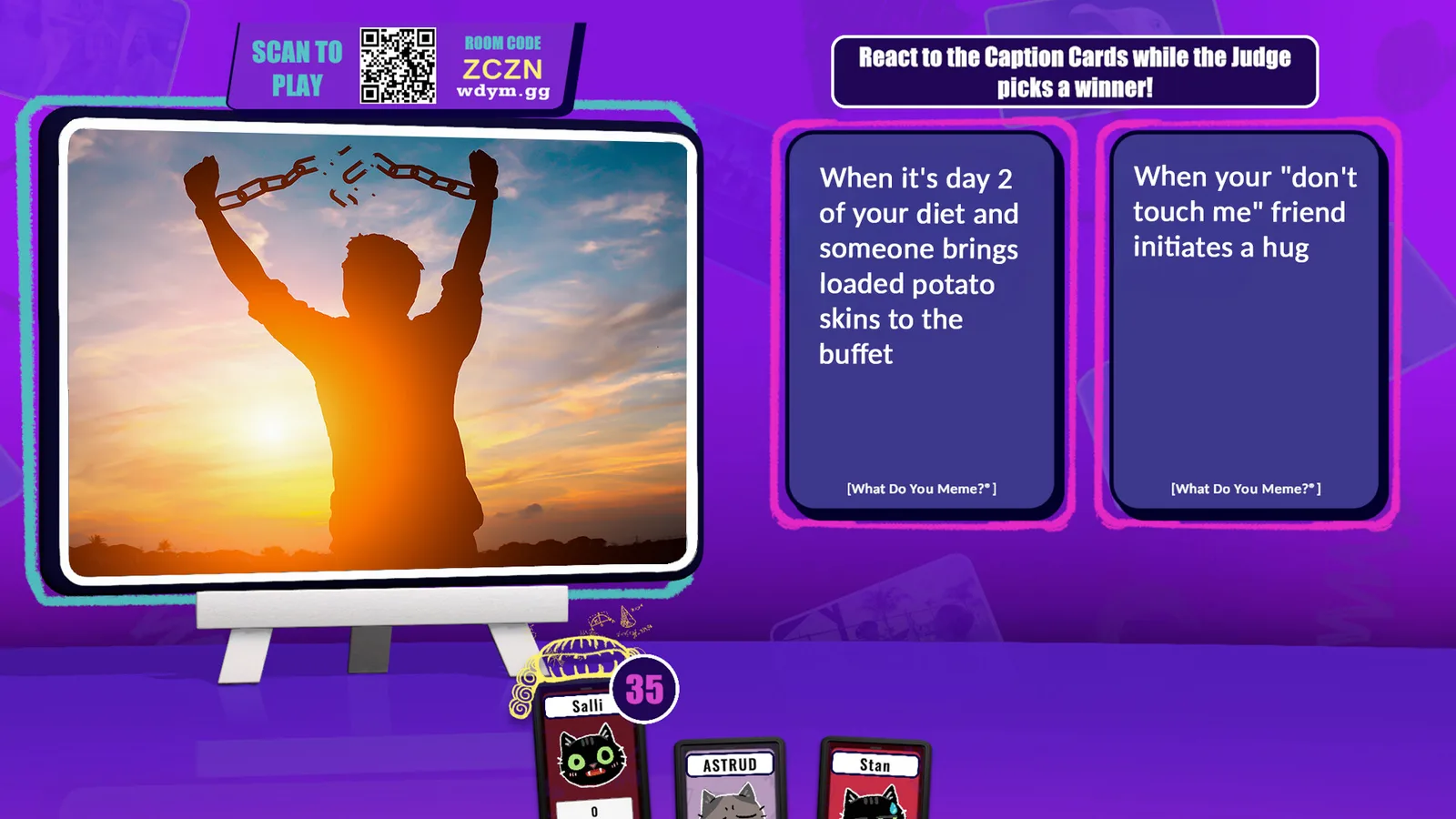
The join flow, step by step
- Start a match on the console or PC. The lobby screen displays a room code and the address wdym.gg.
- Open a browser on the phone. Safari, Chrome, Edge and Samsung Internet all work; there is no app to download.
- Go to wdym.gg and enter the room code exactly as shown.
- Choose a display name. This is what appears on the TV scoreboard and next to your caption.
- Wait for the lobby to list your name. The TV is the source of truth, not the phone.
- Pick a caption when the first photo appears. The phone becomes the hand; the TV stays the stage.
The whole sequence takes about twenty seconds per player once the code is on screen. A table of eight can be in the game in under two minutes if everyone starts at the same time.
One phone per player, and why it matters
The game hides submissions from the judge and from other players. That privacy is the entire reason the phone exists: if two players share a device, they see each other's hand, and the judge can see what is being written.
The rule is therefore simple: one phone per player. A tablet works as well as a phone, and a laptop browser can stand in for a player in a pinch, but the device has to be personal for the round to function.
Battery is the unglamorous failure mode. A two-hour session with the screen on will drain a phone, and a phone that dies mid-round takes a player out of the game. Ask people to start above 40%, or keep a charging cable at the table.
Does the phone need to be on the same Wi-Fi?
This is the question every host asks, and the honest answer is that the join flow is designed to be as simple as scanning a code, not to require network configuration. In practice, a phone on the same home network as the console is the most reliable setup, and it is the one to try first.
If a phone is on mobile data and refuses to load the join page, switch it to the same Wi-Fi as the host. If it works on data but not Wi-Fi, the home network is blocking the connection — usually guest-network isolation or a router setting. The room code troubleshooting page→ walks through those cases.
What the phone shows during a round
The phone is not a mirror of the TV. It shows your hand, your submission state and the result of the round. The photo card, the reveal and the judge's decision all happen on the shared screen.
That division is deliberate. If the photo were on the phone, players would stare at their hands instead of the TV, and the room would stop laughing together. The phone is an input device, not a second screen.
When the round ends, the phone shows whether your caption won and how the scoreboard changed. Then the next photo appears on the TV and the phone deals a fresh hand.
The QR code shortcut
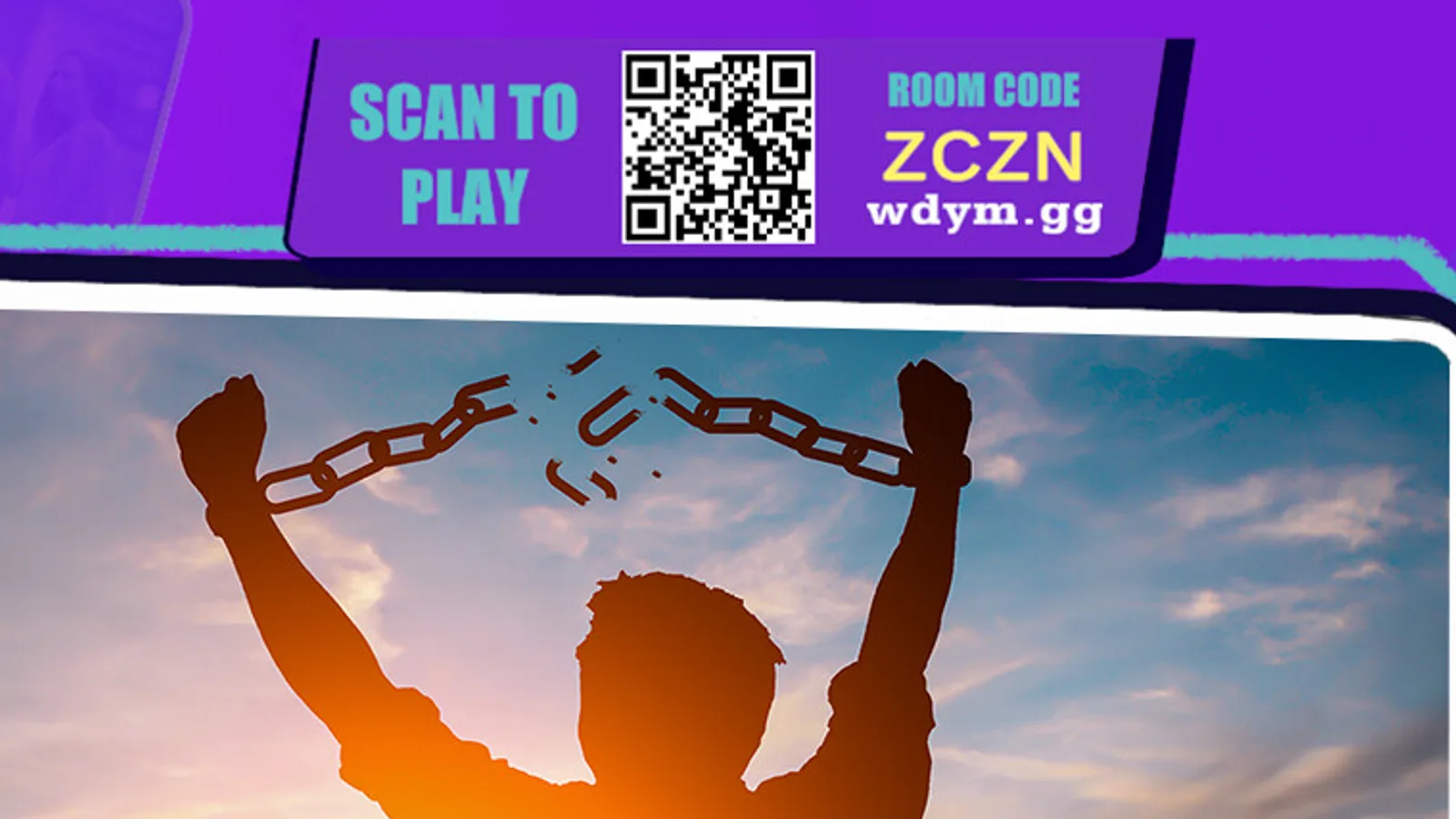
The lobby includes a QR code alongside the room code. Scanning it opens the join page with the code already filled in, which removes the most common typing error: a mistyped character in a four-character code.
The QR code is worth using when the TV is far away or the code is displayed in a font that makes O and 0 look alike. It is not worth using when the phone's camera is being difficult; typing four characters is faster than fighting autofocus.
Keeping the connection stable
Three habits prevent most mid-night dropouts:
- Keep the phone awake. A phone that locks its screen may suspend the browser tab. Set the screen timeout longer before the first round.
- Close heavy tabs. A browser with twenty tabs open is more likely to discard the game tab when memory runs low.
- Do not switch apps mid-round. Answering a message during submissions is the most common way to miss a round.
If a player does drop, the room can usually continue without them; the round proceeds with the submissions already locked. The controller troubleshooting page→ covers rejoining.
Do you need PlayStation Plus or Xbox Live?
The phone controller is a local input method, not an online service. The console's online subscription is not what connects the phones, and the game does not require one for a room in the same house.
That changes when online multiplayer arrives as a post-launch update, which is a separate feature with its own requirements. The online multiplayer page→ tracks what is live and what is still coming.
Where to check the details
FAQ
Do I need to install an app? No. The controller runs in the phone's browser at wdym.gg.
Can I use a tablet? Yes. Any device with a modern browser can join as a player.
How many phones can join? Up to eight players in a room, matching the game's player cap.
Why does the TV not show my name? The join did not complete. Recheck the code, then reload the page. The TV lobby is the only confirmation that counts.
Official rules and store pages
Official source: Snap Finger Click game page ↗ and the in-game lobby screen.